Add iCloud syncing
iCloud can quietly keep one person’s information in step across their Apple devices. Codex needs to prepare both the saved data and the project’s Apple settings.
Save a record into an app configured for private iCloud syncing.
Complete Apple enrolment first. Keep a copy of important local information before changing how it is saved.
The first iCloud setup and sync can take longer than the reading time.
Let’s do this
- 1In Codex
Keep a working copy first
Save a working checkpoint and use sample data. Ask Codex to check whether your current SwiftData model supports CloudKit. CloudKit is the part of iCloud that stores app records. Some model rules need adapting before syncing works.
- 2In Xcode
Turn on the correct capabilities
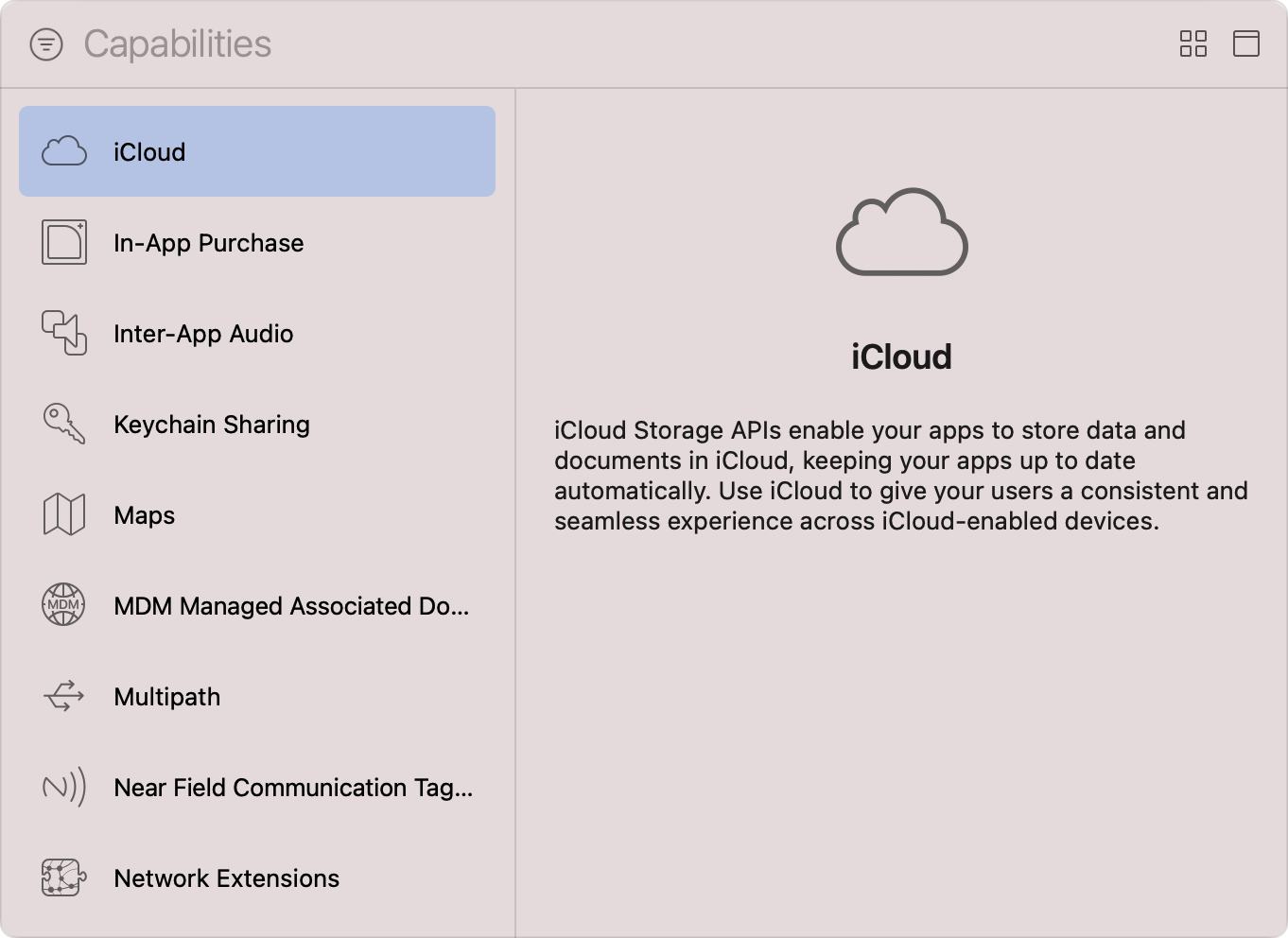
Select your app target → Signing & Capabilities and choose the enrolled team. Click + Capability → iCloud, enable CloudKit and create or select a container for this app. A container keeps this app’s iCloud records together. Note its identifier.
- 3In Xcode
Let iCloud update the app quietly
Add Background Modes and switch on Remote notifications, so iCloud can tell your app when something has changed. Then ask Codex to check three things against Apple’s current guide: the app’s entitlements, which are its signed permissions; the container you just chose; and the way your saved data is set up.
- 4On your iPhone
Run with an Apple Account
Use a test device signed into iCloud with iCloud Drive enabled. Build and run the app, add a sample record and check it remains after closing and reopening. Ask Codex to confirm the development container is receiving the expected record types. You will test a second device next.
 View larger
A message for Codex
Add private iCloud syncing to my first iPhone app using SwiftData and CloudKit. First inspect the existing model and plan a safe migration from local data. Check CloudKit-compatible relationships and defaults. Guide me through iCloud/CloudKit, its container and Background Modes → Remote notifications in Xcode. Explain signed permissions and test with sample data. Handle no iCloud account and sync failures without losing local work.
What you should see
A sample record saves successfully with the intended iCloud container configured. You are ready to test a second device.
If you get stuck
Checked 7 September 2026. Screens can change; the official guides below have the latest steps.
Sync using SwiftData and iCloudConfigure iCloud in Xcode