Install and sign into Codex
Sign into the tool that will work on your app’s files.
Open Codex using the ChatGPT account you already pay for.
Allow extra time for the download and sign-in.
Let’s do this
- 1On your Mac
Open the official setup page
Open the official OpenAI guide. In its Setup section, choose the Desktop tab: the page opens on Web, which has no download button on it. The guide puts Codex inside the ChatGPT desktop app. Use its download button rather than an advert or a download site you have not heard of.
Official Codex setup (Desktop) (opens a new tab) - 2On your Mac
Install and open the desktop app
Open the downloaded installer and follow the Mac instructions. If the download is a disk image, drag the app to Applications when prompted. Open it from Applications.
- 3On your Mac
Sign in with your existing account
Choose the same sign-in method you use for ChatGPT Plus. If you usually use Continue with Apple or Google, use that again. Check that the correct paid account is shown. You do not need to enter an API key.
- 4On your Mac
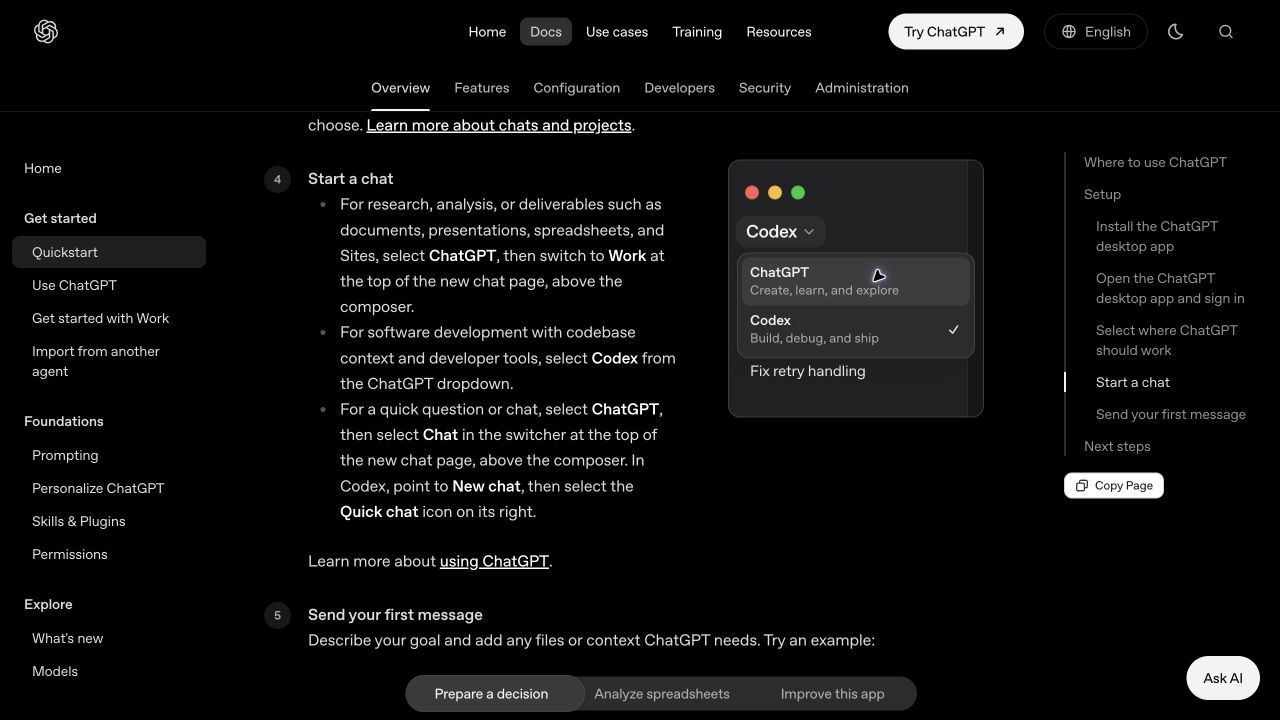
Choose Codex
In the desktop app’s ChatGPT dropdown, choose Codex. The regular Chat option is useful for questions, but Codex is the place to work on your project’s files. If your installed version looks different, follow the current official setup guide rather than guessing.
 View larger
A message for Codex
I am setting up Codex to build my first iPhone app on my Mac. I already have ChatGPT Plus. Confirm that we can use my ChatGPT sign-in for this work. Explain the difference between a normal chat and working on a local app project. Do not ask for an API key, install extra tools or create the project yet.
What you should see
You are signed into the right account and can start a Codex conversation in the desktop app.
If you get stuck
Checked 7 September 2026. Screens can change; the official guides below have the latest steps.
Official Codex setup (Desktop)Projects in CodexCodex plans and limits