Set up a shared home for your data
Use this route when different people need accounts or shared information. Supabase provides those online parts so your app does not need its own server from scratch.
Create a free test project and connect your Swift app using only a public client key.
Take this route after Apple enrolment. You will use native Sign in with Apple and test accounts with sample records.
Creating the online project may take several minutes.
Let’s do this
- 1On your Mac
Create a free project
Open the official Supabase dashboard and create an account. Create a free organisation and a new project. Choose a sensible nearby region and a strong database password, saved in your password manager. Wait for setup to finish.
Open Supabase (opens a new tab) - 2On your Mac
Check the free limits
Read the project’s usage and billing pages. The free plan includes a 500 MB database, 1 GB file storage, 5 GB outgoing data and 50,000 monthly active users, with two active projects. Quiet free projects can pause after a week. Use sample information while learning.
- 3On your Mac
Find the public connection details
Use the project’s Connect panel or API settings to find its project URL and publishable key. Older projects may call the public key anon. These identify the project to the app. Never put a secret key, service_role key or database password in the iPhone app.
- 4In Codex
Connect the Swift app
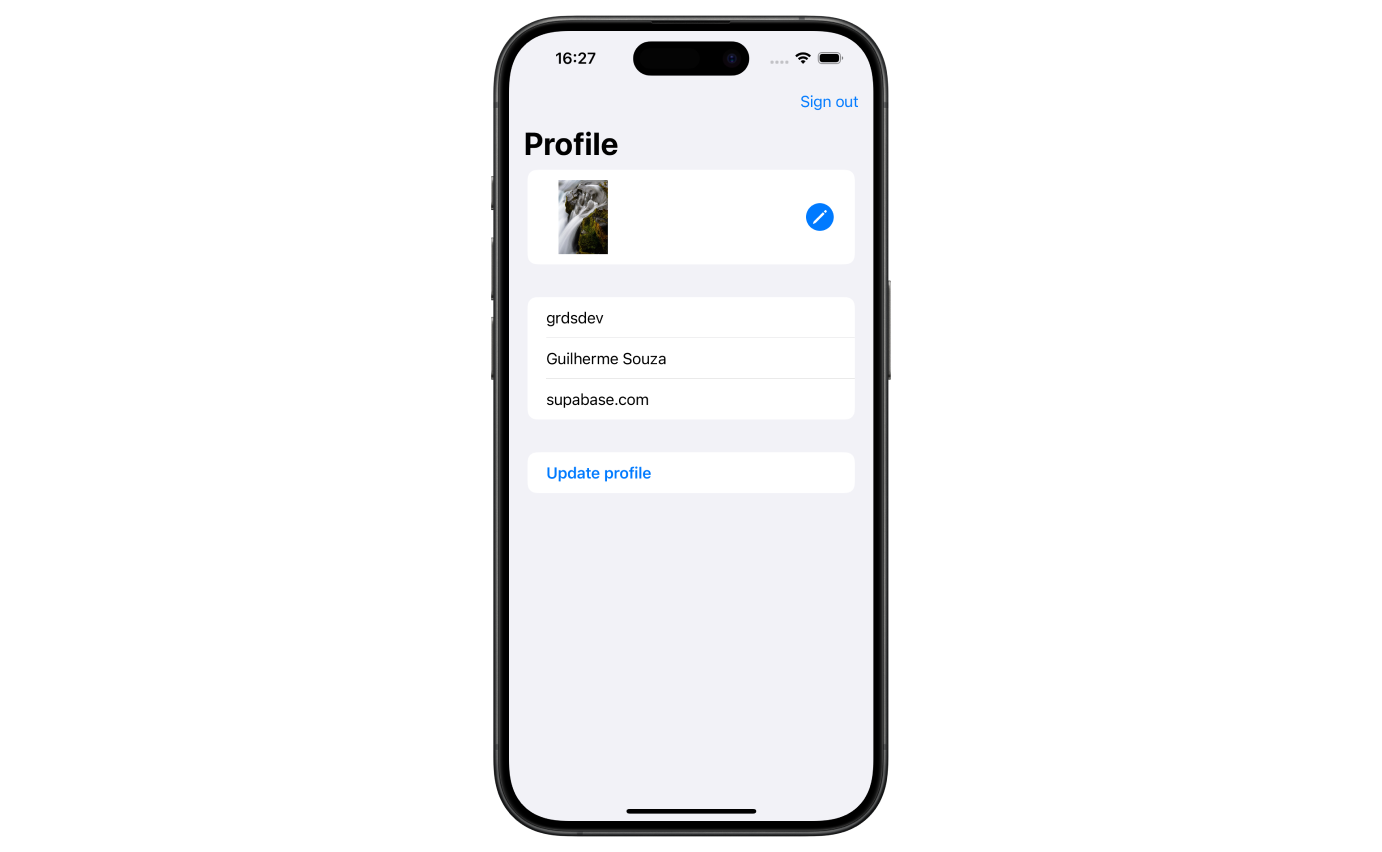
Ask Codex to add the official supabase-swift package and configure the project URL and public key. Have it explain each changed file. Make a harmless connection check with a helpful error message. Keep access to all personal tables denied until the access rules are ready.
 View larger
A message for Codex
Connect my first iPhone app to a new Supabase project using the official supabase-swift package. Guide me to the project URL and publishable key (or legacy anon key), without asking for any secret or database password. Put only public client configuration in the app. Explain free-plan pause and usage limits. Do not expose personal tables or add permissive access rules. Start with a connection check and clear network error handling.
What you should see
Your app reaches the intended test project, and no server secret is included in the app’s files.
If you get stuck
Checked 7 September 2026. Screens can change; the official guides below have the latest steps.
Connect a Swift app to SupabaseSupabase pricingControl access to Supabase records