Prepare your listing and screenshots
Your App Store page should explain what the app really does. Use pictures of your own working app and words your future users will understand.
Prepare an accurate listing, an app icon and the required screenshots.
Writing, choosing artwork and capturing screenshots may take longer than reading this lesson.
Let’s do this
- 1On your Mac
Write a clear description
In App Store Connect, open your app and its iOS version. Enter the subtitle, description, keywords and support address as requested. Say who the app helps, its main job and useful features. Avoid claims or features that are not in this build.
- 2On your Mac
Check the icon and categories
Ask Codex to check the app icon asset in Xcode, including the required App Store artwork. Choose an accurate primary category under App Information. Check that you own or have permission to use all names, artwork and content.
- 3In Xcode
Capture the real app
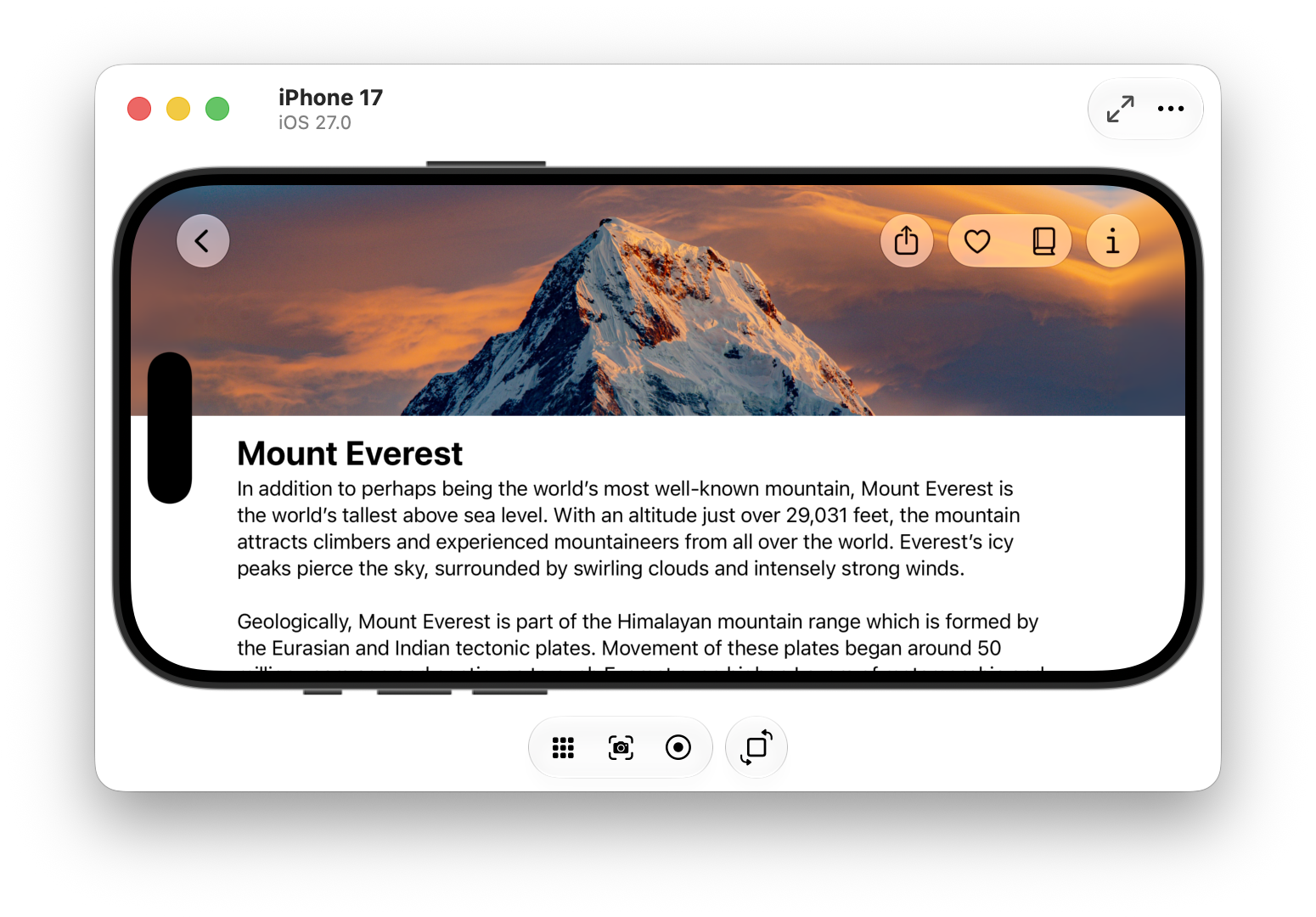
Run the release version in an appropriate iPhone simulator with useful sample content. Use the simulator’s screenshot command or Xcode’s device capture tools. Keep private names, addresses and messages out of the pictures.
- 4On your Mac
Upload the required sizes
Open the screenshot slots in the iOS version page. Follow the sizes Apple currently requests for your supported devices. Upload clear screenshots that show the main journey. Check iPad requirements if your target supports iPad. Do not stretch images or use imaginary screens.
App Store screenshot sizes (opens a new tab)
 View larger
A message for Codex
Help prepare an honest App Store listing for my first iPhone app, for the people I want to help, whose main job is [describe the problem my app should solve]. Inspect the actual release features before drafting a subtitle, description and screenshot plan. Use British English. Check the icon assets and supported device families, and identify the current Apple screenshot requirements we need to meet.
What you should see
Your listing describes the working app and Apple accepts the image dimensions in every required slot.
If you get stuck
Checked 7 September 2026. Screens can change; the official guides below have the latest steps.
App Store screenshot sizesApple’s App Review guidanceApple’s App Review Guidelines