Create your App Store Connect record
App Store Connect is Apple’s website for managing your app’s listing, test builds and releases. Start by making an empty record for your app.
Create one iOS app record with the same identity as your Xcode project.
Your Apple membership must be active. The free Personal Team cannot create an App Store release.
Let’s do this
- 1In Xcode
Check the app’s identity
Open your project in Xcode. Select the app target → Signing & Capabilities. Choose your enrolled team, keep Automatically manage signing on, and note the Bundle Identifier. It is the app’s unique label, such as com.yourname.MyGarden. Keep it stable.
- 2On your Mac
Register the identifier if needed
Open Certificates, Identifiers & Profiles in your Apple developer account and look under Identifiers. Xcode may already have registered your app’s ID. If missing, add an App ID for an app using that exact explicit Bundle Identifier and only the capabilities your app uses.
- 3On your Mac
Add a new app
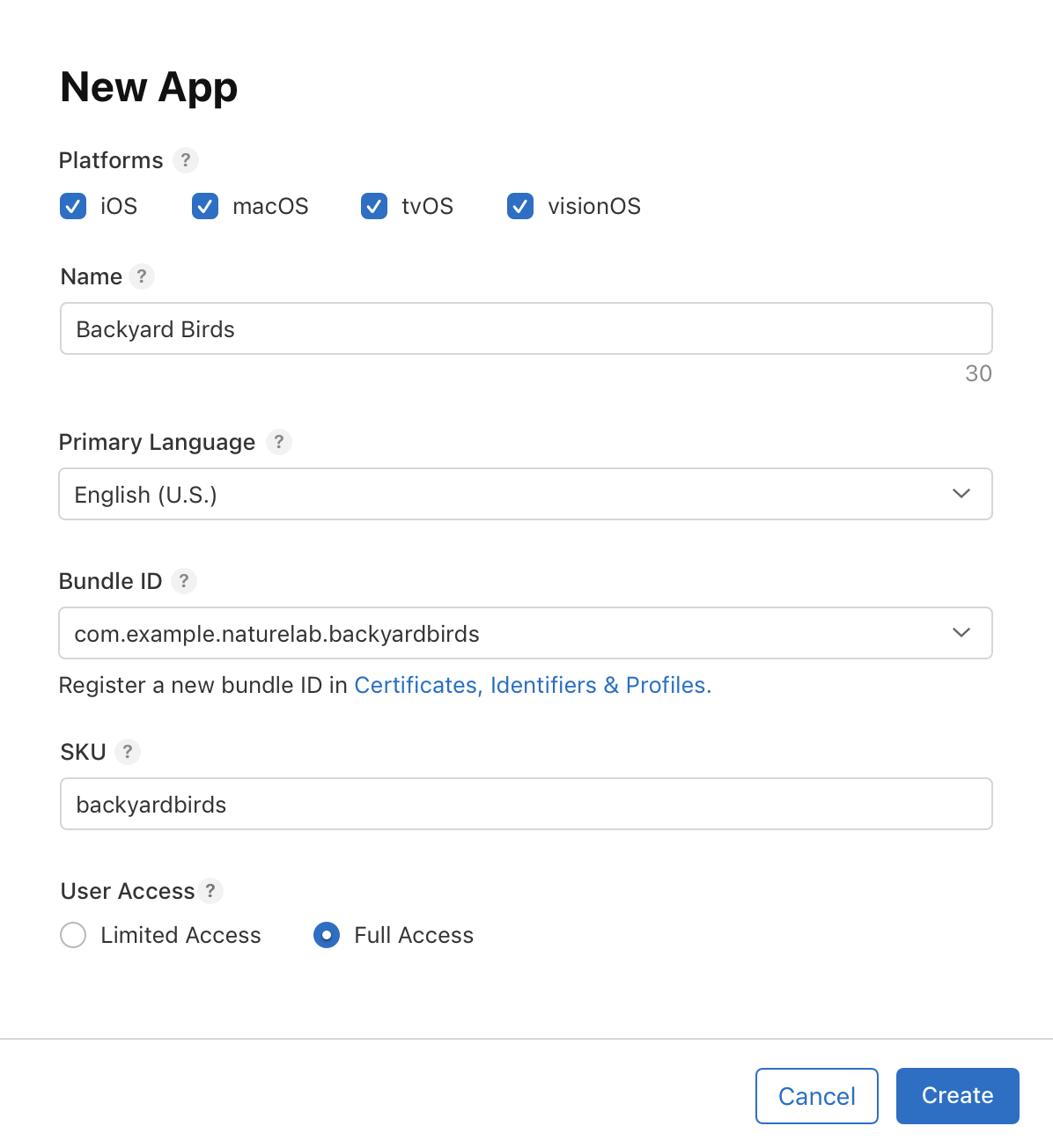
Open App Store Connect → Apps → + → New App. Choose iOS, enter the app name and primary language, select the matching Bundle ID and set a private SKU, such as mygarden-ios-001. SKU is your own reference, not the public app name.
Open App Store Connect (opens a new tab) - 4On your Mac
Create and check the record
Choose access for your own account and click Create. Check the app name and Bundle ID carefully. Now choose the optional syncing or accounts lessons below if needed, or continue to preparing a build.
 View larger
A message for Codex
Check the identity settings for my first iPhone app without changing them. Tell me its Bundle Identifier, app target and selected signing team. Explain what I should select in the new App Store Connect record, and flag any mismatch.
What you should see
Your new app appears in App Store Connect and its Bundle ID matches Xcode.
If you get stuck
Checked 7 September 2026. Screens can change; the official guides below have the latest steps.
Add an app recordUpload a beta app