Enable testing and install your app
Tell your iPhone that you want to try an app you are developing.
Install the app on your own iPhone using your Apple Account.
Let’s do this
- 1In Xcode
Sign into your Apple Account in Xcode
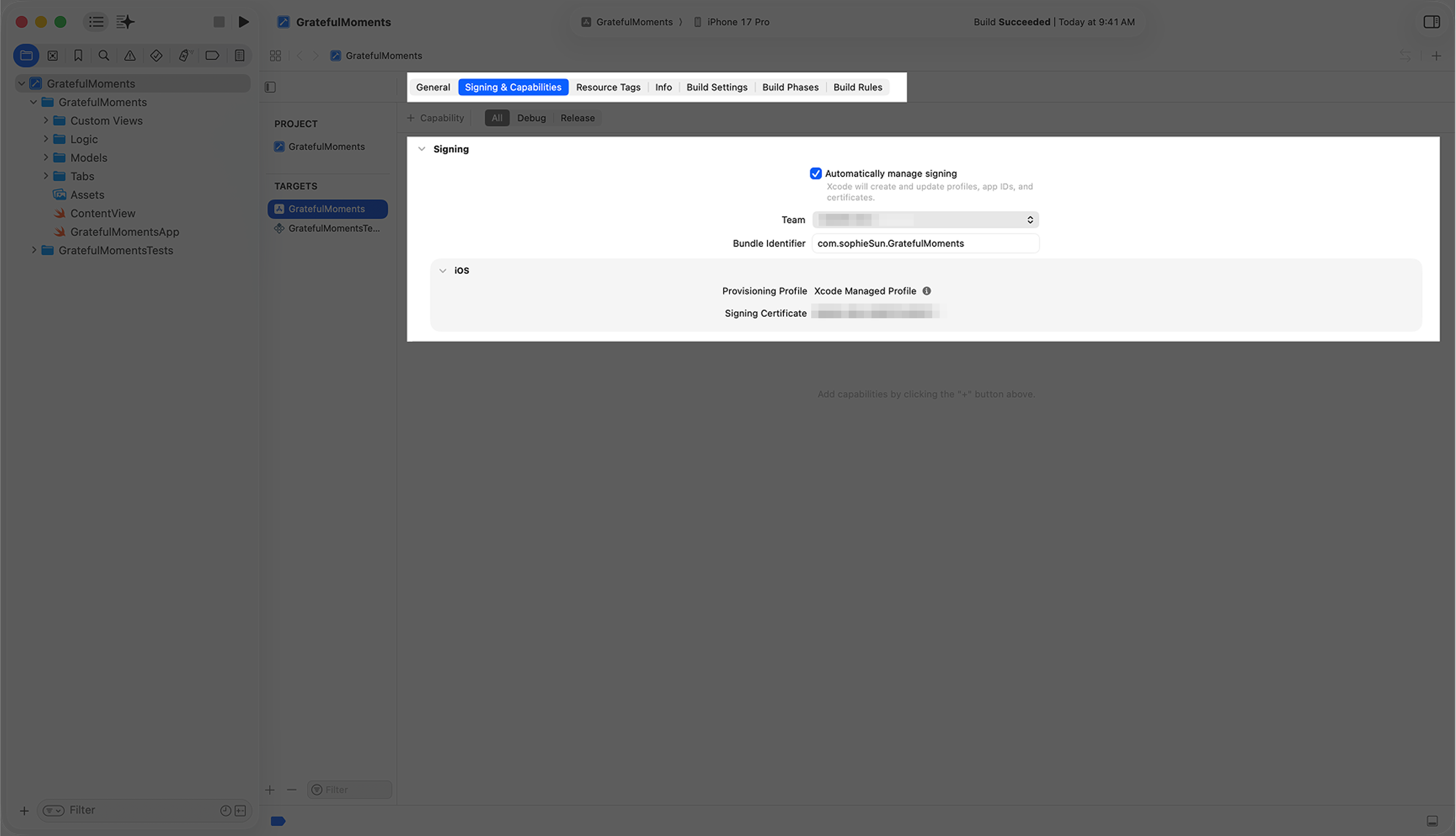
Open Xcode → Settings → Accounts. Some versions of Xcode label this tab Apple Accounts. Add your normal Apple Account if it is missing. Then select the app target, the app itself inside your project, and open Signing & Capabilities. Switch on Automatically manage signing and choose your Personal Team for free testing.
- 2In Xcode
Choose your connected phone
In the run destination menu, select your iPhone by name. If Xcode opens a signing setup sheet, select the correct team and your app’s own Bundle Identifier. Let Xcode resolve signing.
- 3On your iPhone
Enable Developer Mode when requested
After pairing with Xcode, open Settings on the iPhone, then Privacy & Security, Developer Mode. Turn it on for development, restart if asked, and confirm after restarting. If the option is missing, finish pairing first. Do not change unrelated security settings.
- 4In Xcode
Run the app
Unlock the phone and press Run in Xcode. If iOS asks you to trust the developer in Settings, General, VPN & Device Management, confirm only your own developer identity. Follow the message shown on your phone rather than installing an unrelated profile.
 View larger
A message for Codex
Help me run my first iPhone app on my connected iPhone using my own Apple Account and automatic signing. I am using a free Personal Team unless I tell you otherwise. Explain any signing error and give one step at a time. Do not ask for my password or disable unrelated protections. Confirm the selected team, app identifier and device before changing project settings.
What you should see
Your app opens on your real iPhone. You can also see its icon on the Home Screen.
A couple of words, explained
- Signing
- Apple’s way of attaching a developer identity to an app, so a device knows who made it.
- Personal Team
- Xcode’s name for free testing with your own Apple Account.
- Target
- The app itself inside your project. It is what Xcode actually builds. Most first projects have one.
If you get stuck
Checked 7 September 2026. Screens can change; the official guides below have the latest steps.
Run on a simulator or deviceApple’s free developer account